Using the Raw Data Control
 Use the Raw Data control to view data in its original form for auditing or debugging purposes. You can create up to eight instances of this control.
Available Node categories for display in this control include Gas Device or Liquid Device Nodes. You can view data for one Node at a time, selected from the filtered Node Chooser results.
Each row represents a record, and each column represents a data field. The control toolbar and the context menu allow you additional options to manage files and customize the view of the data. By default the Raw Data control is set to use the Session Node and Session options. You cannot set the Session Node from this control.
Measurement data is normalized to simplify its handling within CygNet Measurement. Before that normalization occurs however, the data is stored in the most raw form possible in order to maintain a complete and accessible audit trail from the beginning to the end of the measurement process. The Raw Data control provides comprehensive access to those raw records via a selection of data view options.
See CygNet FMS Raw Data Control for more information about configuring this control in CygNet Studio.
See FMS Explorer User Interface for more information about the FMS Explorer user interface.
Viewing Raw Data
Use the Raw Data control Chooser pane (unless the Use Session Node option is selected in the Options pane) and Options pane to filter the data to show in the grid. Either pane can optionally be displayed or pinned to the left side.
Chooser Pane
In the embedded Node Chooser for the Raw Data control, select the Nodes you want to view data for from the Device, Gas Device (including station meter), or Liquid Device Node categories. Further filter the Nodes by name, description, or ID as desired. See Using the Node Chooser Control for more information.
Options Pane
In the Session section of the Options pane, define the values for the data you would like to view. In the Raw Data section, define additional display options.
|
Options Pane |
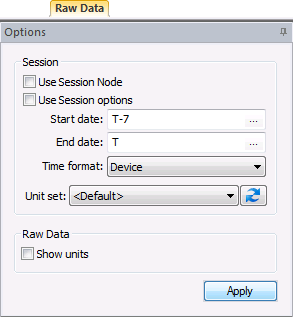
Raw Data control options are as follows.
| Option | Description |
|---|---|
| Session | |
|
Use Session Node |
Click the check box to select/clear the option to Use Session Node instead of using the chooser. Notes: The Use Session Node check box is selected by default for Data controls (Alarm, Configuration, History Graph, History Grid, and Raw Data). The Use Session Node check box is cleared by default for Summary controls (Dashboard, Exceptions), Reports controls, and Admin controls (Balance, Jobs; not applicable to Close Period, PPA). |
|
Use Session options |
Click the check box to select/clear the option to Use Session options instead of entering a time window and time format. Notes: The Use Session options check box is selected by default for Data controls (Alarm, Configuration, History Graph, History Grid, and Raw Data). The Use Session options check box is cleared by default for Summary controls (Dashboard, Exceptions), Reports controls, and Admin controls (PPA, Balance, Jobs; not applicable to Close Period). |
|
Start date |
Date selections are in Contract days (C). Select the starting date, unless Use Session options is selected. Type the date into the text box or click ... to Select Date. See Selecting Date and Time for more information. |
|
End date |
Date selections are in Contract days (C). Select the ending date, unless Use Session options is selected. Type the date into the text box or click ... to Select Date. See Selecting Date and Time for more information. |
|
Time format |
Click to select the desired time format from the drop-down menu, unless Use Session options is selected. Options are as follows.
Default value is Device time. |
|
Unit set |
Select a unit set in which to view the data, where applicable. Options appear in the drop-down menu, which is populated by the unit sets defined in the service, and includes a default unit set. |
|
|
Refresh the available unit set list. |
| Raw Data | |
|
Show units |
Click to select/clear display of data units in the grid, where applicable. Default value is cleared. |
|
Apply |
Click to Apply the changes made through the Options pane. Note: When you click Apply on the Options pane, any Node selection that has been made but not applied on the Chooser pane will also be applied. |


Columns
The data fields available to be viewed in the Raw Data control columns are determined by the data view selected on the control toolbar. Different initial default columns, and different sets of available data fields, are displayed depending on the data view selection.
See EFM Data Items for more information and lists of data items supported by CygNet Measurement.
Example
For either Gas Quality Raw or Metering Raw data view selections, the time format shown is as selected for the Session, and the first three column positions are occupied by the following:
- Begin Normalized Date/Time (always used)
- Begin Date/Time (used for leading time of the record)
- End Date/Time (used for trailing time of the record)
For other data view choices, alternative view-appropriate Date/Time columns are shown instead. For all data views, column display choices are configurable by using the Field Chooser. See Using the Field Chooser for more information.
Note: Since you can poll multiple times for the same window of time, the Audit Entry Date/Time , Comment, and Username columns are included in the Raw Data grid for each type of data view, and are useful to help collate the data in the grid and understand which row contains the most current data.
Columns can be reorganized for the most efficient viewing of data in the following ways.
- Hover over a fixed column edge to display an icon to reset column width. Drag the column to the desired width.
- Drag a column header left or right to the desired location.
- Click on a column header to sort data based on that field, in either ascending or descending order.
- Drag a column header off the grid entirely to remove that data field from the view. The removed column header will appear on the field chooser.
- Drag a column header from the field chooser to the column header row to add that data field to the view.
Managing Raw Data
Manage raw data via the Reports control toolbar and context menu.
Toolbar
Use the Raw Data control toolbar to access options to manage the data you are viewing. See Menus and Toolbars for more information.
|
Raw Data control toolbar |

The following options appear on the toolbar; unavailable buttons appear dimmed.
| Option | Description |
|---|---|
|
|
Click to Refresh the control view. Note: The Refresh button will not take into account changes made through the Options pane that have been selected but not yet applied. See Refresh Button for more information. |
|
|
[The Save button is not available on this control.] |
|
|
[The Cancel button is not available on this control.] |
|
|
Click to Open and view the control as a .csv file. |
|
|
[The Print button is not available on this control.] |
|
|
Click to Export the contents of the control to a .csv file. |
|
Click to select a Data view mode from the drop-down menu. Options are as follows.
Default value is Metering Raw. |
|
|
Show only most recent records |
Click the check box to toggle between showing all records or only the most recent record for each hour for each data view. The option is checked by default. If there are multiple records at the same DateTime and the multiple records are identical, except for audit details, only the record that was most recently brought into FMS will be shown. |


Context Menus
Right-click in the grid to access the option to select Decimal precision for the display from 0 - 10 decimal places. Default value is 7.
Note: Although values are shown in the Raw Data control with a decimal precision of up to 10 places, device Node values are shown in the Liquid Device QTR and Liquid Device Raw QTR reports with a decimal precision of 15 places.
Right-click in the column header row to access the option to display/hide the Field Chooser so that you can customize which columns to display in the grid. See Using the Field Chooser for more information.

